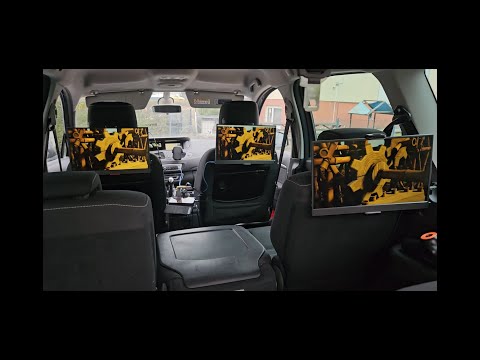
When on a lengthy drive with young children, Its nice to have a setup to keep all your passengers indulge in the same content on their personal screens while immersing themselves in the audio through the car's speaker system. This provides them with a cinematic experience on the move. Leveraging commercial off-the-shelf (COTS) hardware and open-source software, here is an attempt to build such a system.


Note: The list of items along with their respective models, prices, and online links provided in this table are from the the time when this was written. However, they are presented solely as a reference and may be subject to change in the future. It is advisable to conduct your own research and verify the current information before proceeding to build this setup.
| Sr.No | Item | Quantity | Unit-Price(€) | Price(€) | Remarks | Link |
|---|---|---|---|---|---|---|
| 1 | 12v-to-48v boostconverter | 1 | 24 | 24 | 48V 3A 144W | Link |
| 2 | TP-Link Gigabit PoE Switch | 1 | 36 | 36 | Unmanaged PoE 65W | Link |
| 3 | 5v PoE Splitter(MicroUSB) | 1 | 10 | 10 | 5V/2.4A Micro USB Plug | Link |
| 4 | GL.iNet GL-MT300N-V2 router | 1 | 30 | 30 | None | Link |
| 5 | 12v Car Plug extension | 1 | 7 | 7 | with DC 5.5mm connector | Link |
| 6 | 3Key USB keyboard | 1 | 25 | 25 | Optional (touch OSD available) | Link |
| 7 | Aux Audio Jack Cable 3.5 mm | 1 | 6 | 6 | Display-to-Car-Audio feeder | Link |
| 8 | USB Flash drive | 1 | 10 | 10 | Capacity as per your media size | Link |
| 9 | Raspberry Pi-4 | 3 | 50 | 150 | Minimum 2GB Ram | Link |
| 10 | Raspberry Pi-4 Case | 3 | 13 | 39 | Passive cooled aluminium case | Link |
| 11 | 180° USB-C adapter | 3 | 8 | 24 | usb-c male to female | Link |
| 12 | 5v PoE Splitter(USB-C) | 3 | 15 | 45 | With USB-C connector | Link |
| 13 | 14" fullHD touch display | 3 | 110 | 330 | Price may vary | Link |
| 14 | Flexible flat ethernet cable | 3 | 5 | 15 | 5m or longer | Link |
| 15 | MicroHdmi-to-Hdmi cable | 3 | 9 | 27 | 0.3m | Link |
| 16 | Short USB to USB-C cable | 3 | 5 | 15 | 0.3m | Link |
| 17 | 180° HDMI adapter | 3 | 9 | 27 | Depends on your touch display | Link |
| 18 | MicroSD Card | 3 | 10 | 30 | 16GB or higher | Link |
As of writing this, total cost of building three screen infotainment setup is around 850€
Here is the picture showing the assembly of Raspberry-Pi, PoE-Splitter and touch-display(note: numbers marked on the parts are same as listed in the Bill-Of-Material).

There are two ways to prepare the SD cards:
The easiest way - download and flash the same image to all SD cards.
Download: media-mux-v2.1.0 Pi4 Image (~1.2GB)
- Download the image file above
- Flash to each SD card using balenaEtcher or Rufus
- Insert SD cards into your Raspberry Pi 4's and boot
That's it! Each Pi automatically:
- Generates a unique hostname from its MAC address (e.g.,
media-mux-a1b2c3) - Discovers other media-mux devices on the network
- Auto-negotiates master/slave roles (no manual configuration needed)
With this option, you can skip the "Final setup of Raspberry Pi's" section below - just boot and go!
For custom setups or if you prefer to install on an existing Raspberry Pi OS.
As shown in this picture below, using Raspberry-Pi-Imager, prepare 3 micro-sd-cards by setting the correct hostname/user/pw(for pi user, feel free to choose your own password). Make sure to set hostname as media-mux-0001/media-mux-0002/media-mux-0003 and keep the user as pi.

Then follow the "Final setup of Raspberry Pi's" section below to complete the installation.
Overwrite OEM firmware of pocket router with this image. Exact details of preparing pocket router as DLNA/DHCP server are available here in my blog(Make sure your media files are copied on a ntfs formatted flash drive).
Note: If you used the pre-built image (Option 1), skip this section - your Pi's are ready to use!
- As shown in this picture below, connect your PC(or laptop) to the 5th ethernet port(Non-PoE) of the PoE switch and turn ON the +12Vdc to this setup. wait for about 1-2 minutes so that pocket-router and raspberry-pi's are done with booting(your laptop or pc will get the ip 192.168.20.x from the dhcp server of the pocket-router).

- From your PC(or laptop) ssh into the first Raspberry pi using putty.exe or ssh
ssh pi@media-mux-0001 - As shown in this picture below, run the commands:
git clone --recursive https://github.com/hackboxguy/media-mux.gitandcd media-muxandsudo ./setup.sh -n 1and finally reboot usingsudo reboot;exit

- Repeat the steps 2 and 3 by using next hostname(media-mux-0002/media-mux-0003) and using
sudo ./setup.sh -n 2andsudo ./setup.sh -n 3 - After reboot, all 3 Raspi-Touch-Screens will automatically boot to kodi media player where you can browse your media files from Pocket-Router's DLNA server and play the content.
There are multiple ways to trigger synchronization:
- Start playing a video on the master device (the one with USB storage)
- Tap the screen to show the OSD (On-Screen Display)
- Look for the Sync and Stop All buttons at the right end of the button bar:
- Sync - Synchronizes playback position across all screens
- Stop All - Stops playback on all screens

Note: These buttons only appear on the master device. Slave devices won't see them.
The Raspi that is attached with the 3-Key USB keyboard becomes the sync trigger device. Press KEY_1 to synchronize all screens to play the same media at the same position.
During video playback on the master device, press 'S' key to trigger sync immediately.
You are free to operate all 3 Raspi-Touch-Screens and play separate medias so that every passenger can enjoy their own content by attaching an audio-headset to their respective screens.


Depending on your car's seat headrest, there are numerous options available, particularly those designed for tablet mounting. Seek out the one that best fits your car and the size of your touchscreen display. While inexpensive holder clips (option-3) may be simple to hold the touch-display but they dont have a secure grip as other options.

The media-mux-controller daemon listens for keyboard input. Upon detection of KEY_1, the media-mux-sync-kodi-players.sh script is invoked. This script:
- Reads the currently playing media and position from the master device
- Discovers all media-mux devices on the network via Avahi/mDNS
- Opens the same media file on all devices
- Uses kodisync to pause all players at the exact same frame
- Seeks all players to the master's position
- Resumes playback simultaneously
Sync accuracy: The system achieves sub-200ms synchronization, typically with less than 10ms spread between devices. This is a significant improvement over the earlier version shown in the YouTube video, which required multiple sync attempts.
For more technical details, see the media-mux README.
An alternative deployment eliminates the GL-MT300N-V2 pocket router entirely. One Raspberry Pi automatically becomes the master (providing DHCP, DNS, NTP, and DLNA) when USB storage is attached.
- Simpler hardware: No pocket router or separate PoE splitter for router
- Same SD card image: All Pi's use identical images - master is determined by USB presence
- Automatic failover: Move USB to a different Pi to change which one is master
- Time synchronization: NTP ensures all devices have synchronized clocks
- Touch-friendly OSD: Sync/Stop buttons in Kodi player (master only)
- No startup prompts: Pre-configured addon database eliminates confirmation dialogs
┌─────────────────────────────────────────────────────────────────────────────┐
│                              PoE Switch                                     │
│              (Powers all Pi devices via single Ethernet cable)              │
└────┬─────────────────┬─────────────────┬─────────────────┬──────────────────┘
     │                 │                 │                 │
     │ PoE+Data        │ PoE+Data        │ PoE+Data        │ (to car 12V)
     ▼                 ▼                 ▼                 │
┌─────────┐       ┌─────────┐       ┌─────────┐            │
│ Pi4     │       │ Pi4     │       │ Pi4     │     ┌──────┴──────┐
│ +PoE HAT│       │ +PoE HAT│       │ +PoE HAT│     │ 12V→48V     │
│ ┌─────┐ │       │         │       │         │     │ Boost Conv  │
│ │ USB │ │       │  Kodi   │       │  Kodi   │     └─────────────┘
│ │Media│ │       │ Client  │       │ Client  │
│ └─────┘ │       │         │       │         │
│ MASTER  │       │  SLAVE  │       │  SLAVE  │
└─────────┘       └─────────┘       └─────────┘
Remove these items:
| Item | Savings |
|---|---|
| GL.iNet GL-MT300N-V2 router | -30€ |
| 5v PoE Splitter (MicroUSB) for router | -10€ |
Add these items:
| Item | Qty | Unit Price | Total | Link |
|---|---|---|---|---|
| PoE HAT for Raspberry Pi 4 | 3 | ~20€ | 60€ | Link |
Net change: +20€ but simpler wiring (single cable per Pi instead of separate power + ethernet)
- Flash the media-mux-v2.1.0 image to all SD cards
- Attach USB storage (with media files) to whichever Pi should be the master
- Boot all Pi's - they auto-configure based on USB presence
The v2.1.0 image includes:
- Kodi addon with touch-friendly Sync/Stop OSD buttons
- Pre-configured addon database (no startup prompts)
- All self-hosted networking services (DHCP, DNS, NTP, DLNA)
If you have an older image, run on each Pi:
# Step 1: Base installation (will reboot after completion)
cd /home/pi/media-mux
sudo ./setup.sh -n 1

# Step 2: After reboot, login again and run self-hosted setup
cd /home/pi/media-mux
sudo ./setup-selfhosted.sh
For full details, see Mode B: Self-Hosted in the main README.